Link rules
Link rules decide, per project, which link types can be used, by whom, and to which projects. They are set by the project's administrator.
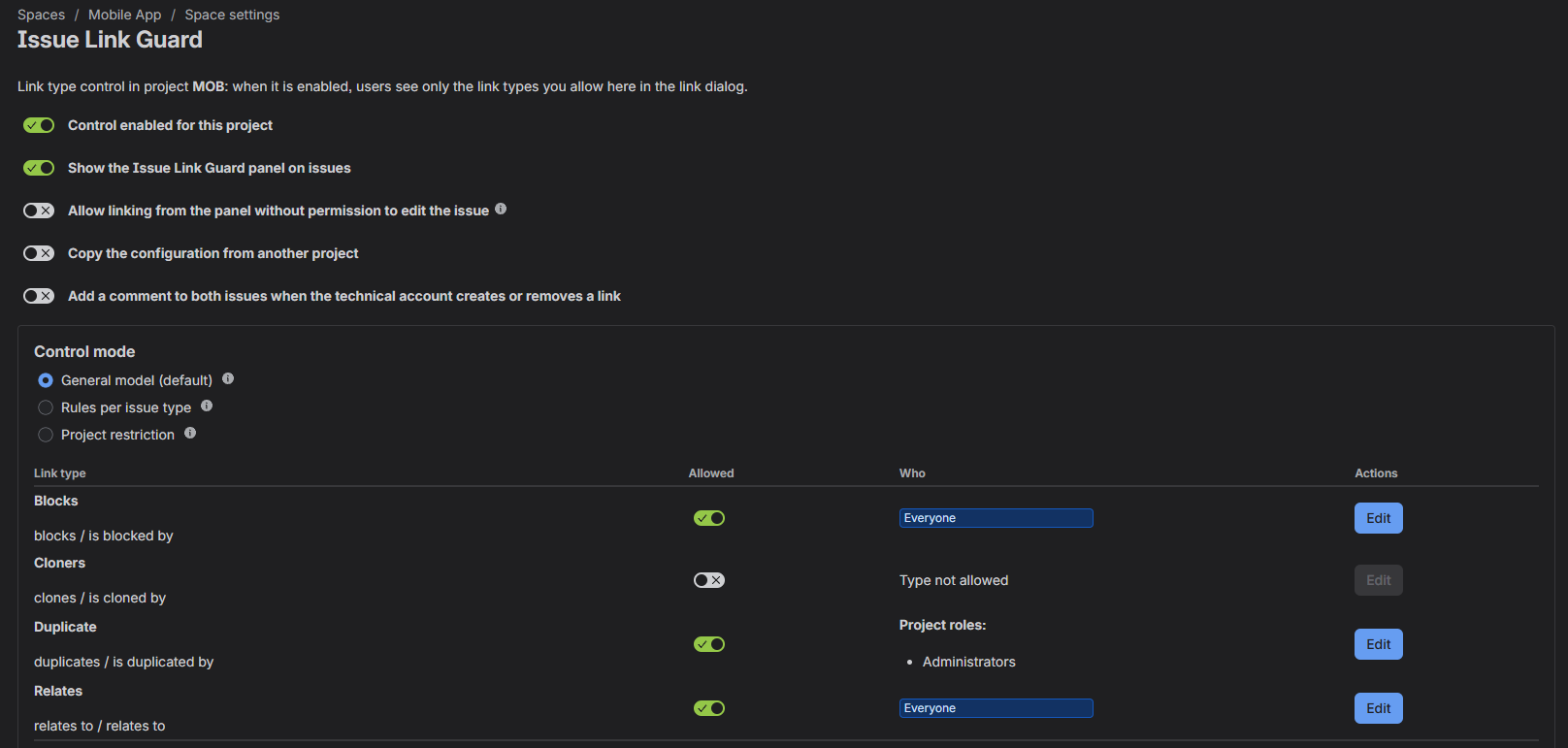
Open Project settings → Apps → Issue Link Guard (in the new Jira navigation: Space settings → Apps → Issue Link Guard). The page is available to users with the Administer Projects permission in the project and to Jira administrators.
Nothing on this page takes effect until you select Save. The page shows when the configuration was last saved.
What the rules cover
The rules apply to every link made through Issue Link Guard:
- the link window opened from the side panel,
- the links field,
- picker fields, unless a Jira administrator set the field to ignore the project's rules,
- links chosen on the create screen, which are checked for the person who created the issue.
They apply to removing links too: a user can remove a link only if the rules would let them create it.
The rules do not cover Jira's built-in "Linked work items" section. Users who keep Jira's own "Link Issues" permission can link there with any type. To make the rules binding, a Jira administrator turns on the technical account and removes "Link Issues" from those users.
Turning control on
Switch on Control enabled for this project. While control is off, the app applies no rules: every link type is allowed for everyone who can link in the project.
If the technical account is turned on while control is off, the page shows a warning: anyone who can edit an issue in the project can then link it with any type through the app, even without Jira's "Link Issues" permission.
Control modes
| Mode | What it controls |
|---|---|
| General model (default) | One table of link types and the people who can use them, for the whole project. |
| Rules per issue type | Separate tables for selected issue types. Issue types without their own rules use the general model. |
| Project restriction | Which projects users can link to. All link types are allowed for everyone. |
Only the selected mode is in effect. Rules entered in another mode are kept but not used.
General model
The table lists every link type in Jira.
- Use the Allowed switch to allow or block a link type in the project.
- For an allowed type, select Edit to choose who can use it.
A link type added to Jira after you last saved is blocked until you allow it.
Choosing who can use a link type
In the Access dialog, add one or more entries:
| Entry | Who it covers |
|---|---|
| Everyone | Every user. |
| Project role | Members of the selected project roles, including members through a group. |
| Group | Members of the selected groups. |
| User | The selected users. |
A user who matches any entry can use the link type. An allowed type with no entries cannot be used by anyone.
If the app cannot determine a user's groups or project roles, it does not guess: link types available only to groups or roles are hidden from that user, and the server refuses them.
Rules per issue type
The page lists the project's issue types. Each one shows either General model or Configured.
- Select Manage next to an issue type. You see a copy of the general model's table.
- Change the table for that issue type. From the first change on, the issue type uses its own rules, independent of the general model.
- Select ← Back to issue types and repeat for other types.
- Select Save.
Opening an issue type and going back without changing anything leaves it on the general model. To return an issue type to the general model, open it and select Clear the configuration of this type.
The rules that apply to a link are those of the issue the user is linking from.
Project restriction
- Under Allowed target projects, add the projects users may link to.
- Select Save.
Users can then link issues of this project only to issues in the listed projects and in the project itself. With no project listed, linking is possible only within the project. The issue search offers only issues from the allowed projects.
In this mode the app does not check link types. If the project also uses the technical account, the page reminds you that everyone who can use Issue Link Guard in the project can link with any type through the app.
Other project options
| Option | Default | Effect |
|---|---|---|
| Show the Issue Link Guard panel on issues | Off | Adds the Issue Link Guard section with Link issue… to the right-hand panel of the project's issues. See Side panel and link window. |
| Allow linking from the panel without permission to edit the issue | Off | Lets users allowed by the rules link from the side panel even without "Edit Issues". Works only with control enabled and the technical account turned on. See Technical account. |
| Add a comment to both issues when the technical account creates or removes a link | Off | Adds a comment saying who requested the link. Comments notify watchers, so turn it on only if you want those notifications. Every such link is recorded in the activity log anyway. |
Copying the configuration from another project
- Select Show copying the configuration from another project.
- Select the source project and select Load. You need to be an administrator of the source project as well.
- Review the loaded rules and select Save.
Loading only fills in the form. Nothing changes in the project until you save.
Picker fields that ignore these rules
A Jira administrator can configure a picker field to ignore the project's link rules. Such a field links with its one configured link type regardless of the rules on this page. When a field like that is used in your project, the page lists it under Picker fields that ignore these rules. See Picker fields.
Limits
| What | Limit |
|---|---|
| Entries (roles, groups and users together) for one link type | 30 |
| Different groups in one project's configuration | 30 |
| Different users in one project's configuration | 30 |
| Issue types with their own rules | 50 |
| Allowed target projects | 50 |