Technical account
Jira's "Link Issues" permission is all or nothing: whoever has it can link any issue they can see, with any link type, through Jira's own "Linked work items" section. Link rules alone cannot stop that.
The technical account closes the gap. You remove "Link Issues" from regular users, and the app's own Jira account creates links for them, but only after checking the project's link rules.
How it works
When the technical account is turned on for a project, links made through Issue Link Guard in that project are created by the app's account instead of by the user. Before it creates or removes a link, the app checks, as the user who asked for it:
- that the project's link rules allow the link type for that user,
- that the user can view both issues,
- that the user can edit the issue, or has "Link Issues" themselves.
The link then appears in the issue's History under the app's account. The person who requested it is recorded in the issue's activity log and, if the project has that option turned on, in a comment on both issues.
Turning the technical account on
Open Jira admin settings → Marketplace apps → Issue Link Guard → Technical account. The page is available only to Jira administrators.
- Select Set up… next to the project.
- Step 1 shows whether the app's account has "Link Issues" in the project's permission scheme, and lists all "Link Issues" entries of the scheme.
- Usually the account already has the permission through the project role
atlassian-addons-project-access, to which Jira adds app accounts. Then there is nothing to do. - If it does not, select Grant the permission to the technical account. The app adds one entry for its own account to the scheme. It never changes or removes any other entry.
- Usually the account already has the permission through the project role
-
Step 2: select Turn on the technical account.
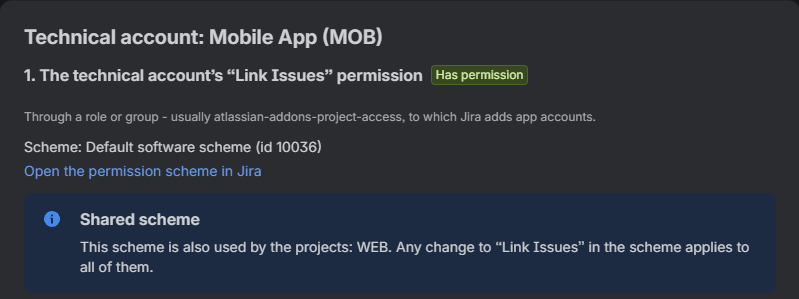
Step 1 shows where the permission comes from and warns that the scheme is shared. -
In Jira, edit the permission scheme and remove "Link Issues" from the users, groups or roles who should link only through the app. The dialog has a link that opens the scheme.
To go back, select Turn off. Links made through the app are then created by the users themselves again, with their own permissions.
The Technical account tab

| Column | Meaning |
|---|---|
| Project | Project name and key. |
| Permission scheme | The project's permission scheme. Shared by N projects appears when other projects use the same scheme; select it to see them. |
| App can link issues | Whether the app's account has "Link Issues" in the project. |
| Technical account creates links | Whether the technical account is turned on for the project. No type rules marks projects where control is disabled or the project uses project restriction: the technical account then creates links of any type for everyone who can use Issue Link Guard there. |
| Last change | Who turned the technical account on, and when. |
| Actions | Set up…, Turn off or Fix permission…. |
Shared permission schemes
A permission scheme is often used by several projects. Any change to "Link Issues" in a shared scheme applies to all of them: if you remove the permission from a group for one project, that group loses it in every project on the scheme.
The app shows Shared by N projects in the table and repeats the list in the Set up… dialog. Before the app adds its own entry to a shared scheme, it asks you to confirm. If only one project should change, give that project its own permission scheme in Jira first.
Team-managed projects
Jira does not allow apps to change the permissions of team-managed projects, so step 1 cannot add an entry there. The dialog explains this and links to the project's access settings. The app's account normally has its permission through the app role.
When a project is marked "Misconfigured"
A project is misconfigured when the technical account is turned on but the app's account has lost "Link Issues" there, for example because someone removed the role atlassian-addons-project-access from the scheme. Nobody can then link through Issue Link Guard in the project, and users see a message asking them to contact their Jira administrator.
The tab shows a red message naming the affected projects. To fix it, do one of the following:
- Select Fix permission… and grant the permission in step 1, or restore the role's entry in the permission scheme yourself.
- Select Turn off to switch the technical account off.
Linking from the panel without permission to edit
By default, a user needs permission to edit an issue (or their own "Link Issues") before the technical account changes the issue's links for them. Some teams want people who can only view issues to link them, for example to report that an issue is blocked.
A project administrator can turn on Allow linking from the panel without permission to edit the issue in the project's Issue Link Guard settings. Then users allowed by the link rules can add and remove links from the side panel without "Edit Issues". The option:
- works only when control is enabled and the project uses the technical account,
- applies only to the side panel, not to the app's fields,
- still requires the user to be able to view both issues,
- still records every change in the activity log.
Which account saves a change
| Situation | Saved by |
|---|---|
| Technical account turned on for the project | The app's account |
| Picker field with Ignore project link rules | The app's account, even if the project does not use the technical account |
| Link chosen on the create screen | The app's account, because no user is signed in when the app creates it |
| All other cases | The user, with their own Jira permissions |
Who may link is always decided by the project's link rules and the user's permissions, whichever account saves the change.