Side panel and link window
The Issue Link Guard section in the issue's right-hand panel gives users one place to see and change an issue's links, without any custom field on the screen. It sits next to Jira's own sections, such as Details, Development and Automation.
Turning the panel on
The panel is off by default. A project administrator turns it on in the project's Issue Link Guard settings with Show the Issue Link Guard panel on issues and selects Save. See Link rules.
The panel then appears on all issues of the project. Users who already have an issue open see it after refreshing the page.
Linking from the panel
- Open an issue.
- In the right-hand panel, expand Issue Link Guard and select Link issue….
- The link window opens with all links of the issue.

The links field opens the same window.
The link window
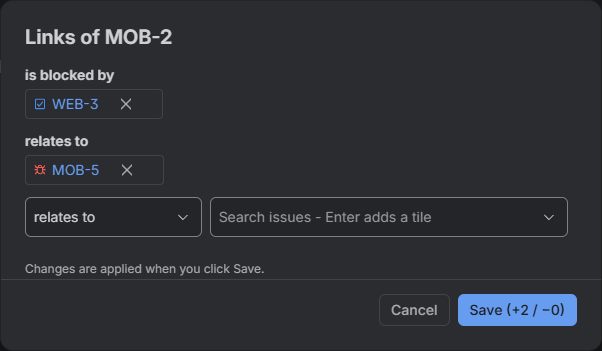
The window lists the issue's links as tiles, grouped by link type, for example "blocks" or "relates to". Each tile shows the linked issue's type icon and key. Select a key to open the issue in a new tab; your unsaved changes in the window stay.
To remove a link, select × on its tile. The × appears only on links you are allowed to remove.
To add links:
- Choose a link type. The list shows only the types the project's link rules allow you to use.
- Search for an issue by key or by words from its summary. Before you type, the list suggests recent issues.
- Pick the issue. It is added as a tile. Repeat for more issues or other link types.
To save, select Save (+N / −M). The button shows how many links will be added and removed. Nothing changes in Jira until you save. Cancel, the window's close button and Escape discard the changes.
After saving, Jira's own "Linked work items" section on the page shows the new state.
If some changes cannot be made
Every change is checked again on the server. If some of them are refused, for example because someone changed the project's rules in the meantime, the window stays open:
- the changes that succeeded are saved,
- the window shows the current links from Jira,
- refused new links come back as tiles, with a message saying what failed and why.
Why some options are missing
Your project administrator decides which link types you can use.
- If the list of link types is short, the other types are not allowed for you in this project.
- If the search offers issues only from some projects, the project allows linking only to those projects.
- If the window says you cannot link issues here, you do not have permission to link in this project. Contact your project administrator.
Limits
| What | Limit |
|---|---|
| Links added in the window before saving | 100 |
Large changes are saved in several steps of up to 10 links each, one after another.