Picker fields
A picker field links with one fixed link type, for example "blocks", and offers only the issues that match a JQL filter. Users only pick issues; they never choose a link type. A picker can hold one issue or many.
Typical uses: "Blocked by" pointing at issues of one team's project, "Parent request" holding exactly one issue from a service project, "Related incidents" limited to open incidents.
Adding a picker field (Jira administrator)
- In Jira admin settings → Work items → Fields, create a custom field of the type Issue Link Guard – Picker. You can give it any name, for example "Blocked by".
- Add the field to the screens the project uses. A field appears on issues only when it is on the project's screens.
- Configure the field's context, as described below. Until then the field shows "This field is not configured yet".
Configuring the field
Open the field's Contexts and select Edit custom field config for a context.
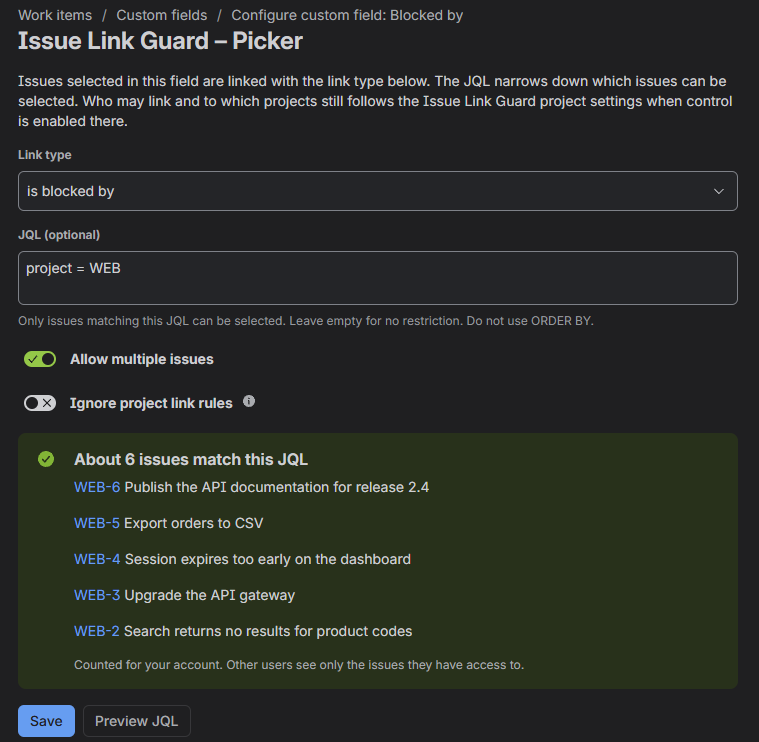
- Choose the Link type, including its direction, for example "blocks" or "is blocked by".
- Optionally enter a JQL filter. Only matching issues can be selected. Do not use
ORDER BY. Select Preview JQL to see about how many issues match and a few examples. - Set the options below and select Save.
| Option | Default | Effect |
|---|---|---|
| Allow multiple issues | On | On: the field holds any number of issues. Off: the field holds at most one issue, and picking another one replaces it. |
| Ignore project link rules | Off | See Ignore project link rules. |
A field can have several contexts, so the same field can use a different link type or JQL in different projects.
The JQL preview counts issues for your account. Other users see only the issues they have access to.
Using a picker
On the issue view the field shows its issues as tiles with the issue type icon and key. Select a key to open the issue.
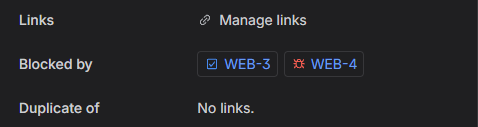
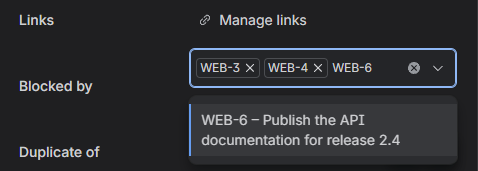
To change the field, select it:
- To add a link, search for an issue and pick it. The link is created straight away.
- To remove a link, select × on its tile. The link is removed straight away.
The search offers only issues that match the field's JQL and that you can see.
On the create screen, pick issues in the same way. The links are created a few seconds after the issue is saved; see On the create screen.
Who creates the link
A link picked in a picker is created either by the user, with their own Jira permissions, or by the app's account on the user's behalf:
| Situation | Who creates the link | Does the user need "Link Issues"? |
|---|---|---|
| The project does not use the technical account and the field does not ignore the project's rules | The user | Yes |
| The project uses the technical account | The app's account | No, permission to edit the issue is enough |
| The field has Ignore project link rules turned on | The app's account, even without the technical account | No, permission to edit the issue is enough |
| The link is picked on the create screen | The app's account | Only if the project does not use the technical account and the field does not ignore the rules |
In one sentence: the app's account creates the link when the project uses the technical account, when the field ignores the project's rules, or when the link is picked on the create screen; in all other cases the user creates it. Who may link is always decided by the project's link rules and the user's permissions. When the app's account creates a link, Jira's History shows the app, and the activity log shows who asked for it.
All combinations are explained step by step in What depends on the project's settings.
A picker shows only its own links
A picker shows and removes only the links that were added through that field. Other links of the same type, made with the links field, the side panel or Jira's own linking, are not shown in the picker. They stay visible in Jira's "Linked work items" section, and the picker cannot remove them.
This keeps two pickers with the same link type, for example "Blocked by (team A)" and "Blocked by (team B)", from showing each other's issues.
Links of the same type that already existed before the picker was set up are not on its list.
Pickers holding one issue
A picker with Allow multiple issues turned off always shows at most one issue: the last one picked.
- Picking another issue replaces the current one completely, or not at all. If the current link cannot be removed, for example because its project is no longer an allowed target, the app refuses the change with "Can't replace …: reason" and nothing changes.
- If the linked issue is deleted, Jira removes the link and the field becomes empty. It does not fall back to an older choice.
What is always checked
Whatever the project's settings:
- The link type and direction come from the field's configuration.
- The field's JQL decides which issues can be picked. The server checks it again when saving.
- The user must be able to see the target issue. Issues they cannot see are not offered and cannot be linked.
- The project's target-project restriction applies, if the project uses the project restriction mode, even with Ignore project link rules.
- Removing a link is checked like creating it: who could not create the link cannot remove it.
- Without an active license the field is read-only.
What depends on the project's settings
The rest depends on three settings:
- A. Ignore project link rules in the field's configuration (Jira administrator),
- B. the project's link rules: control off or on, and which mode,
- C. the technical account: on or off for the project.
The examples below use one scenario: Anna edits issue ABC-1 and, in the picker "Blocked by" (link type "is blocked by", JQL project = XYZ), picks XYZ-2.
| Case | Link type rules | Who saves the link | Does Anna need "Link Issues"? |
|---|---|---|---|
| 1. Control off, technical account off | none | Anna | yes |
| 2. Control off, technical account on | none | the app's account | no, permission to edit ABC-1 is enough |
| 3. Control on (general model or rules per issue type), technical account off | yes | Anna | yes |
| 4. Control on (general model or rules per issue type), technical account on | yes | the app's account | no, permission to edit ABC-1 is enough |
| 5. Project restriction | no, only the target project | depends on the technical account, as in 3 and 4 | as in 3 and 4 |
| 6. Field with Ignore project link rules | ignored | always the app's account | no, permission to edit ABC-1 is enough |
| 7. Create screen | as in the cases above | always the app's account | only without the technical account and without Ignore project link rules |
Case 1. The field works like Jira itself. If Anna has no "Link Issues", the field says so and she cannot pick anything.
Case 2. There are no type rules, so anyone who can edit the issue can use the field. On the admin page the project is marked No type rules.
Case 3. The app checks whether "is blocked by" is allowed in the project and whether Anna is one of the people allowed to use it. In the rules-per-issue-type mode, the rules of ABC-1's issue type apply. If the rules do not allow it, the field tells Anna she is not allowed to use this link type and stays read-only.
Case 4. The typical case Issue Link Guard is built for. The rules are checked as in case 3. Anna does not need "Link Issues"; the app's account saves the link. Jira's History shows the app; the activity log shows Anna.
Case 5. Link types are not checked. The search offers only issues from the allowed target projects and from the project itself. If XYZ is not on the list, Anna will not find XYZ-2, and the server would refuse it anyway.
Case 6. See the next section.
Case 7. See On the create screen.
Ignore project link rules
With Ignore project link rules on, the field links with its link type even when the project's rules do not allow that type, or do not allow it for that user. Use it when a link type should be blocked in general but still settable through one controlled field.
- Links are always created and removed by the app's account, even if the project does not use the technical account. The app's account needs "Link Issues" in the project.
- The user does not need "Link Issues"; permission to edit the issue and to see the target issue is enough.
- The field's JQL and the project's target-project restriction still apply.
- The link window and the links field are not affected and keep following the project's rules.
Because this option is set by a Jira administrator, it overrides rules set by project administrators. Their settings page lists such fields under Picker fields that ignore these rules.
On the create screen
- The user fills in the form, picks issues in the picker and selects Create.
- Jira creates the issue. A few seconds later the app checks the same conditions as above, for the person who created the issue.
- The app's account creates the links, because no user is signed in at that point. Without the technical account and without Ignore project link rules (cases 1 and 3), the creator must have "Link Issues"; otherwise the link is not created.
- If a link cannot be created, the new issue's activity log shows Link not created with the reason.
- A picker holding one issue takes only one picked issue.
To record the picker's list of links on the new issue, the app needs "Edit Issues" in the project. It normally has it through the project role atlassian-addons-project-access. Without it, the link is created, but the picker does not show it.
Messages
| Message | Meaning |
|---|---|
| This field is not configured yet. | A Jira administrator has to choose a link type in the field's context configuration. The same message appears if the configured link type was deleted from Jira. |
| You are not allowed to use this link type in this project. | The project's rules do not allow the field's link type for you. |
| Can't replace …: reason | A picker holding one issue could not remove the current link, so it did not add the new one either. |
| Saved with a warning | The link was created, but something next to it failed, for example the field could not add the link to its list. The message says what. |
| This link was not added with this field, so it can't be removed here. | The link was made elsewhere. Remove it in Jira's "Linked work items" section or in the link window. |
Limits
| What | Limit |
|---|---|
| Length of the JQL filter | 2,000 characters |
| Issues picked in one field | 100 |
| Links remembered by one picker on one issue | 300 |